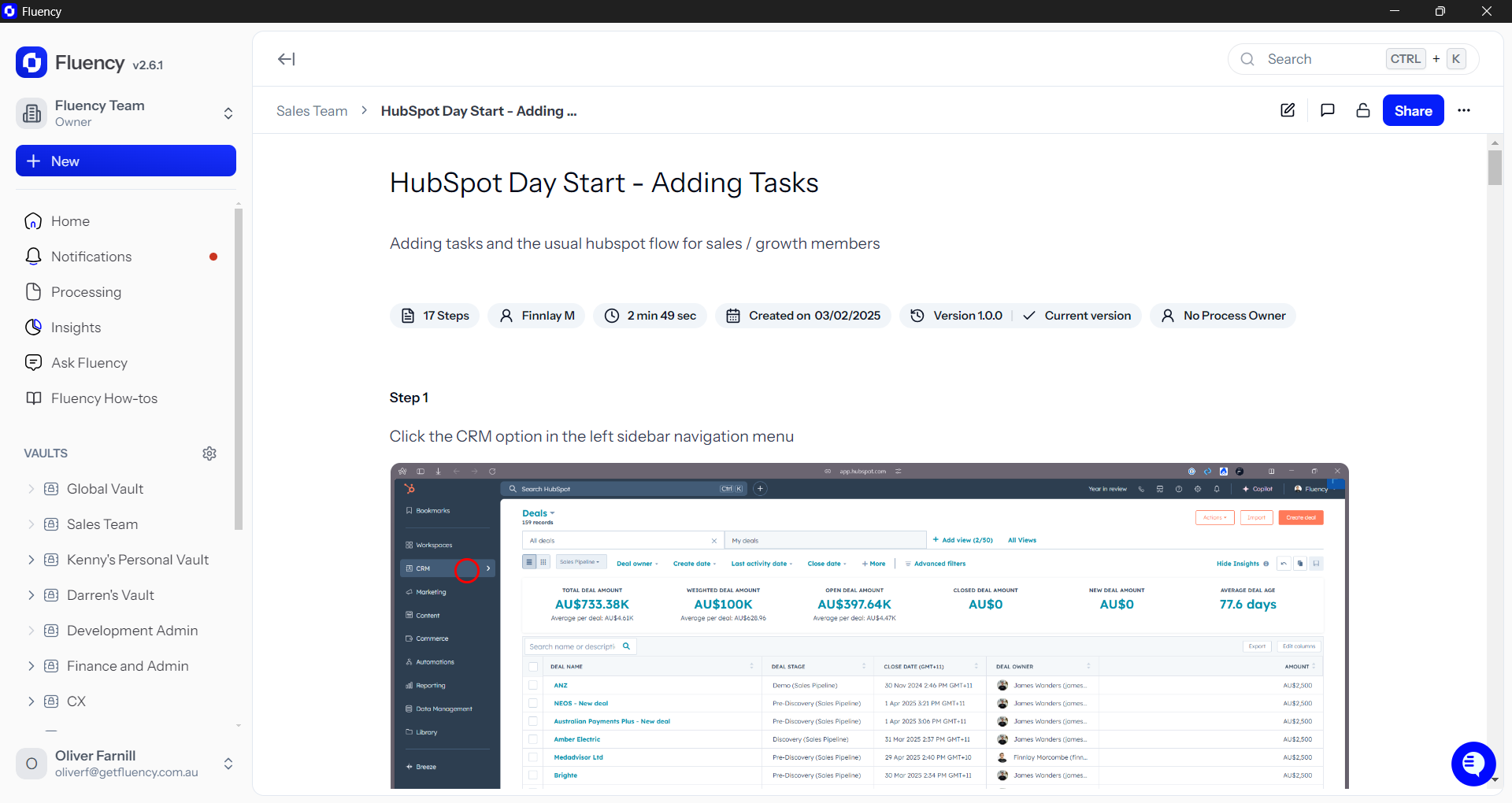
Recording a Process (Windows)
Last updated: July 9, 2025
If you prefer, you can watch the video walkthrough instead. If not, follow along below.
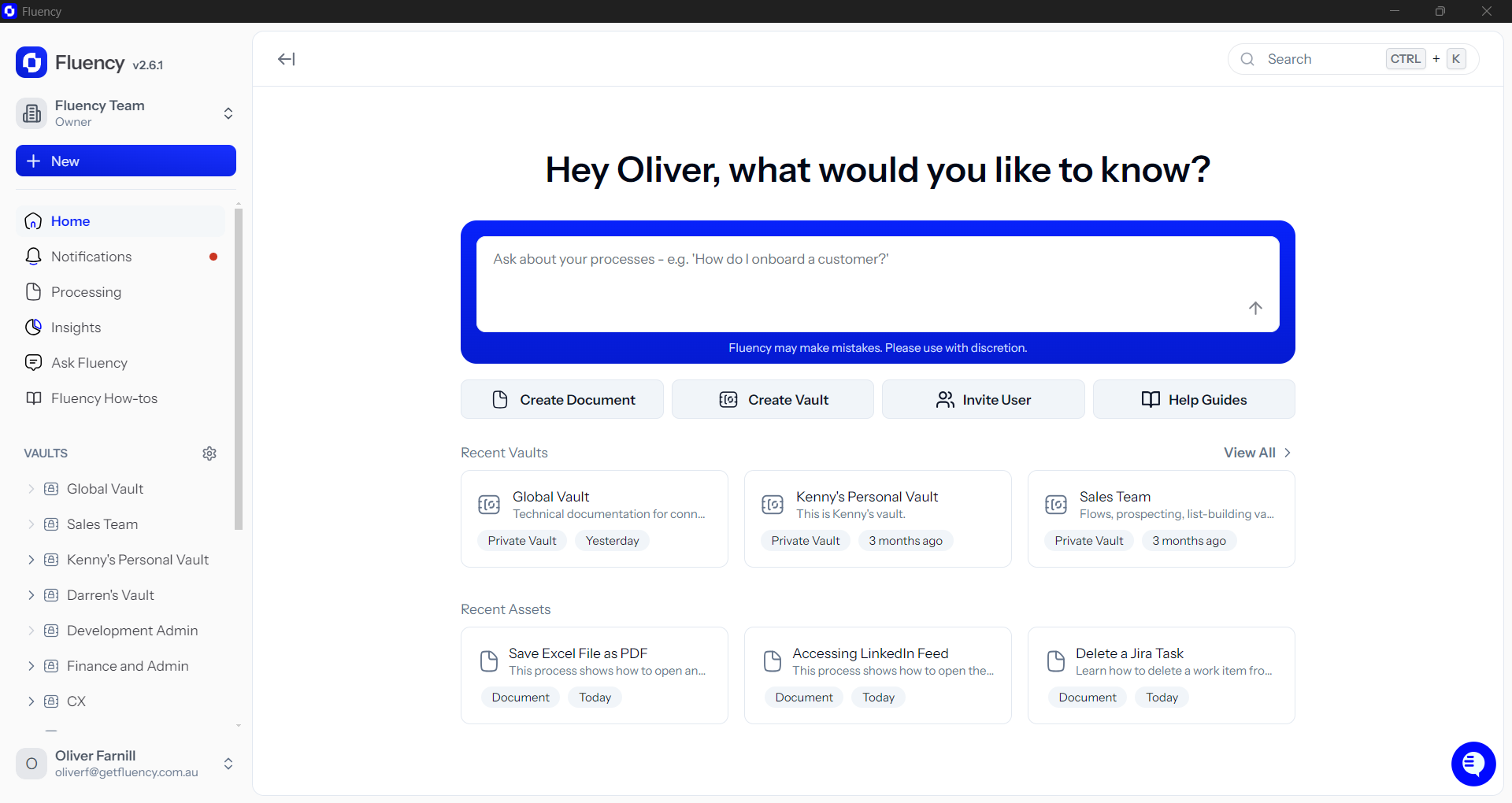
1. Open the Fluency Windows App
Launch the Fluency desktop application to get started.
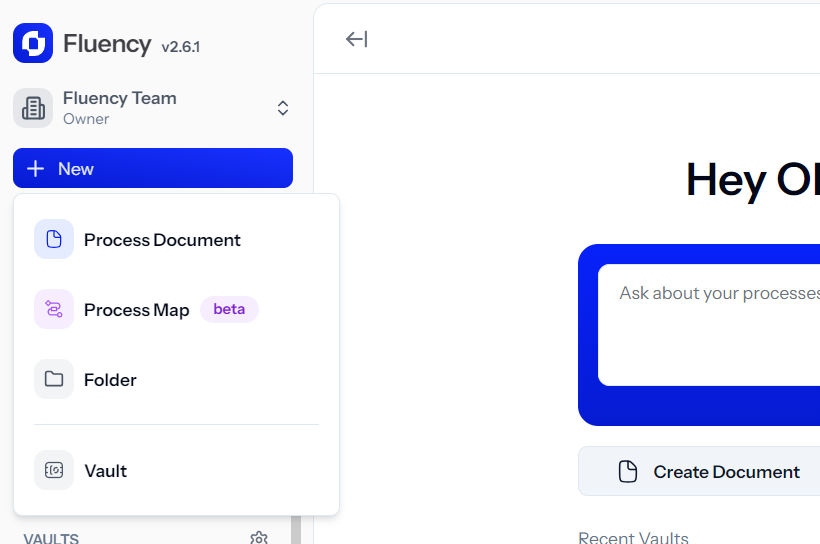
2. Create New Process Document
Click Create New from the sidebar. Then, select Process Document.
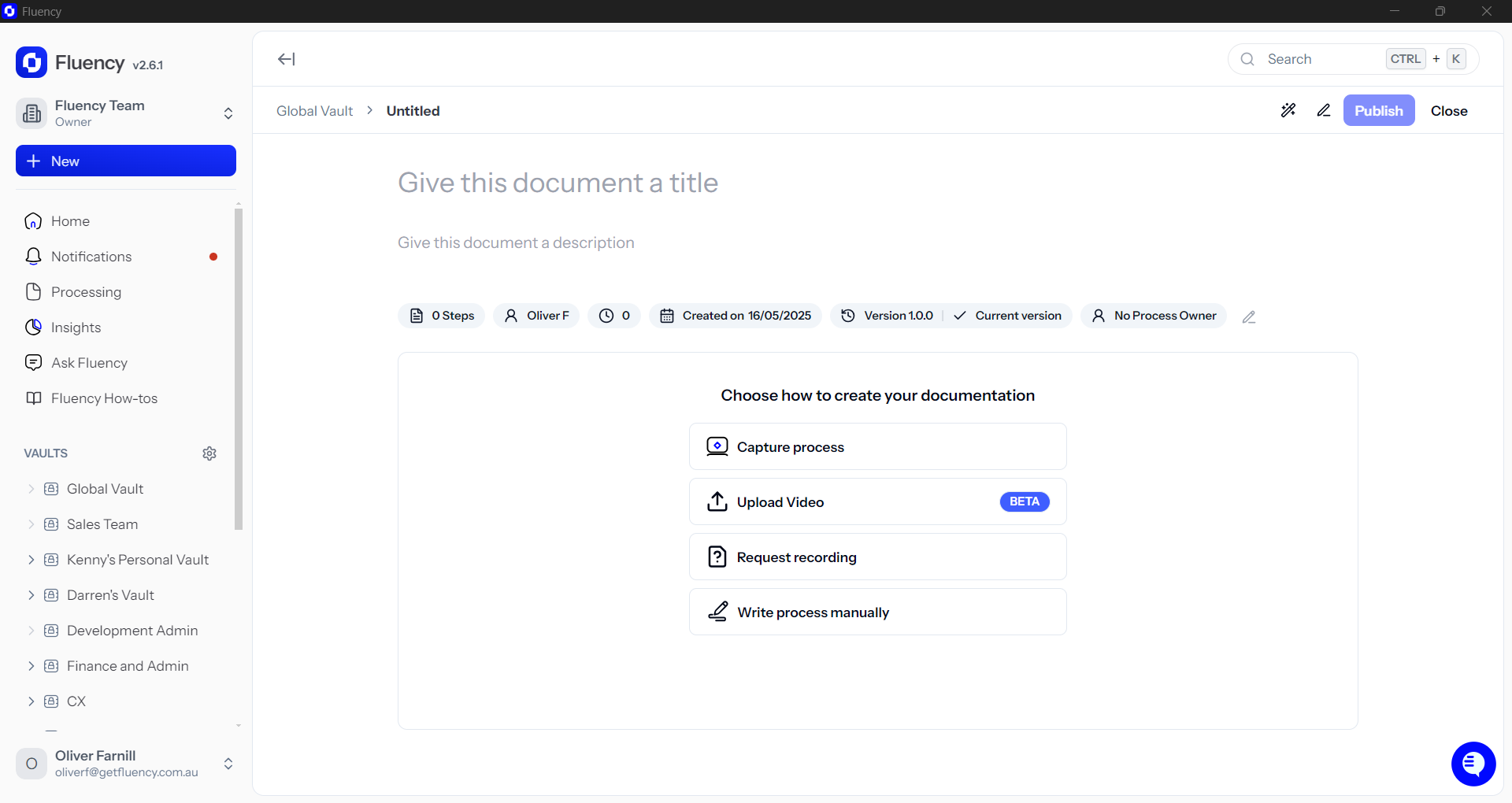
3. Click "Capture Process"
In your new document, click Capture Process.
4. Begin Recording
Once the Recording Begins, Perform the process as usual.
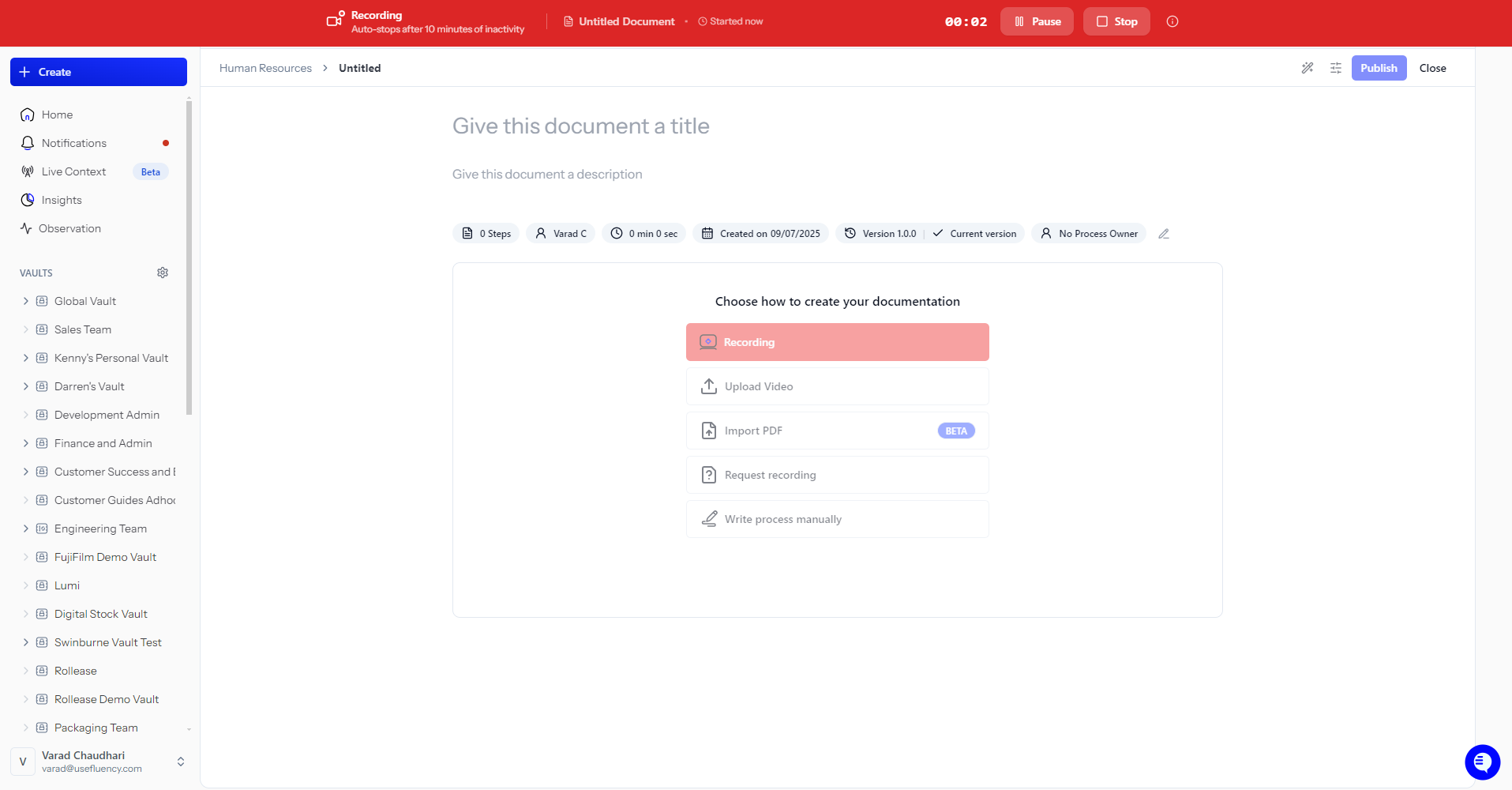
5. Complete the Workflow
Now perform the process as usual. Fluency records every step in real-time. Click Stop Recording when your process is complete.
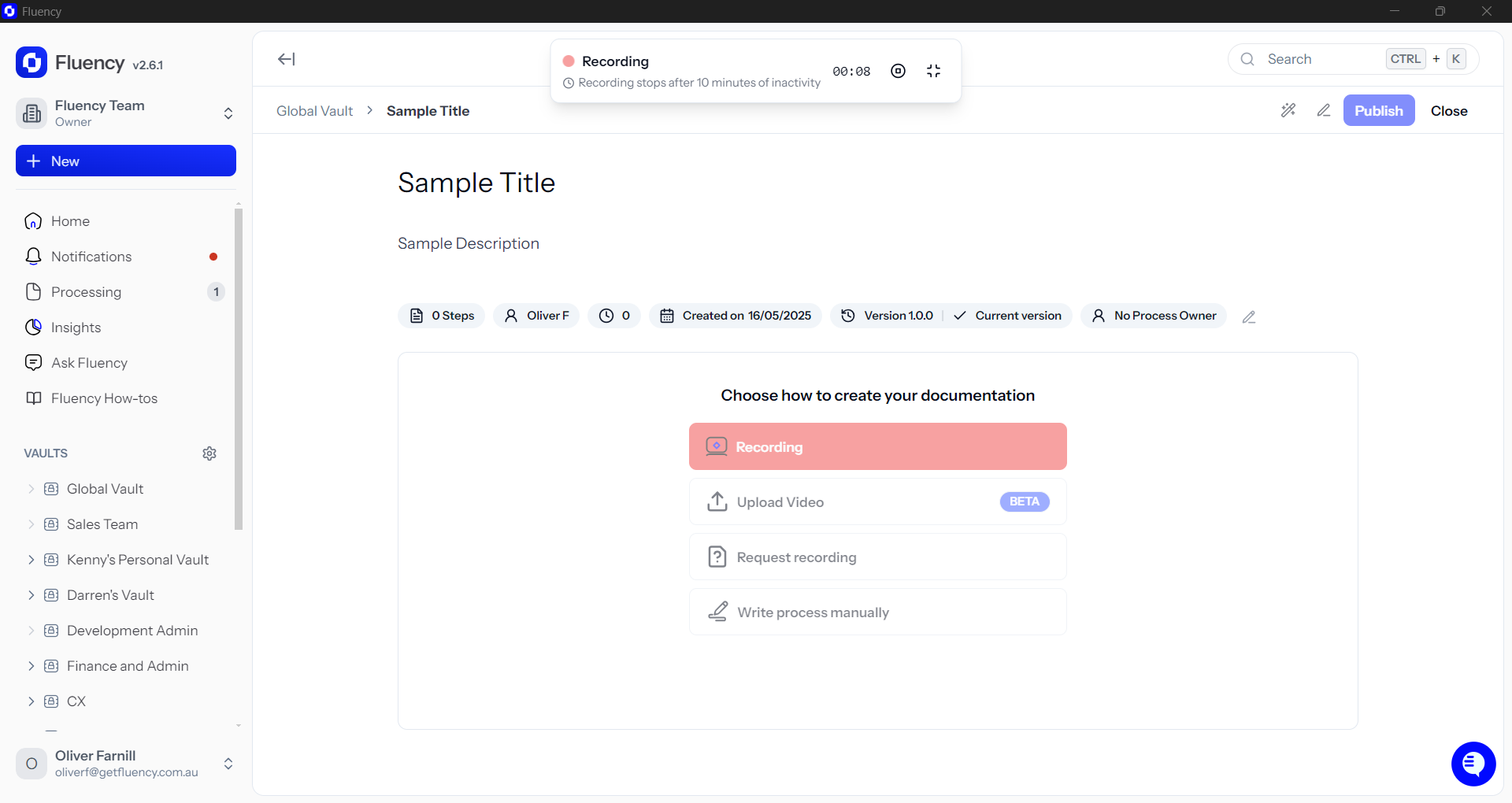
6. Review Your SOP
Fluency will generate a step-by-step, production-ready SOP within seconds—ready to edit, share, or publish.